


工作原理
After downloading, extract Windows Update Blocker to your desired location, then run it
服务状态图标会显示 Windows Update 服务状态。若要阻止自动更新,请选择“Disable Service”并点击“Apply Now”。启用保护服务设置可防止未受控更改(推荐)。
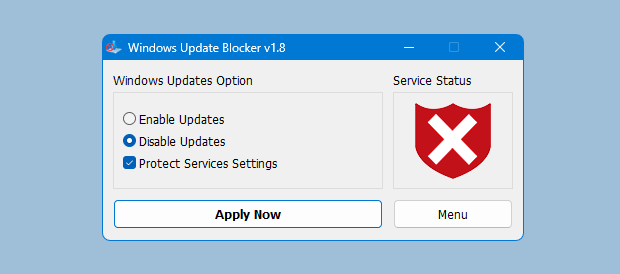
如何阻止其他服务并保护设置
Windows Update Blocker New version allow users to add any other service into Wub.ini file to block it , first please edit Wub.ini file and add your desired service name under the "dosvc=2,4" line , for example if you want to block "Windows Update medic Service" Please 打开服务并找到它
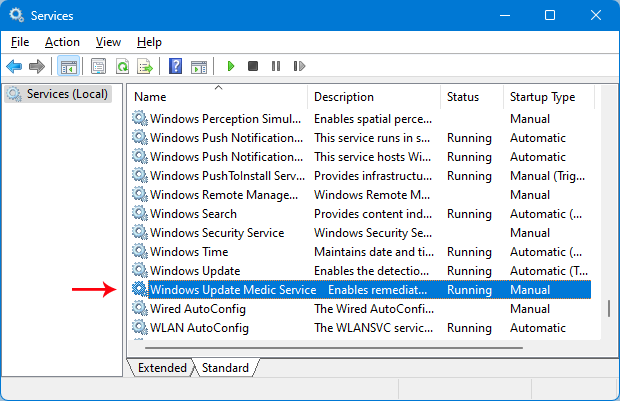
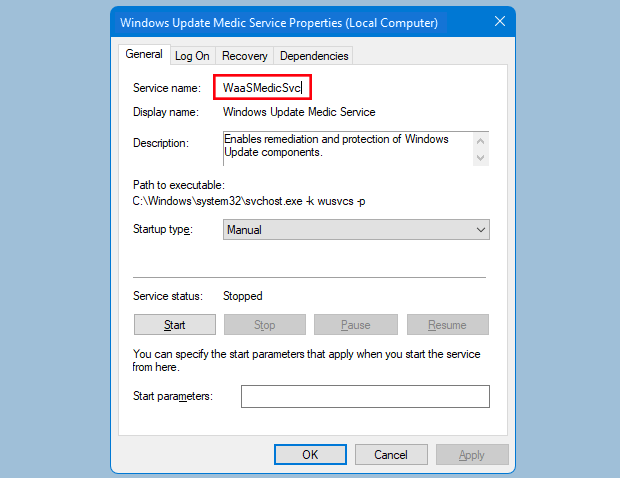
点击它并复制服务名称
在 dosvc=2,4 行下写入或粘贴服务名称
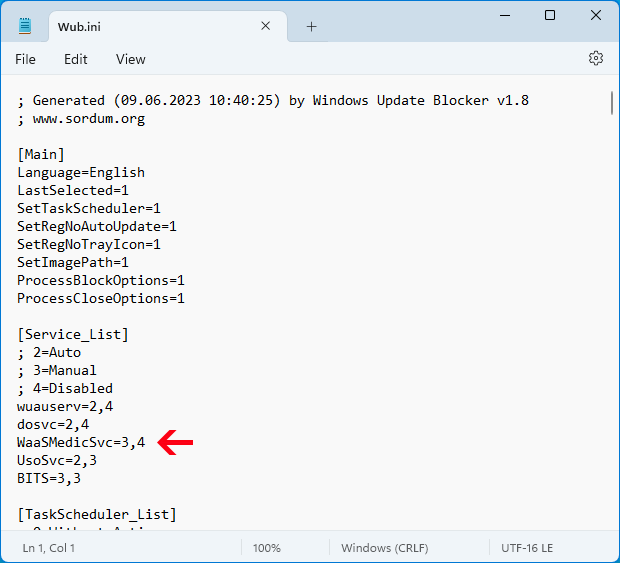
Finally open Windows Update Blocker and use "Apply now" button.
如果稍后要删除新增服务,请按以下步骤操作:
- 打开 Windows Update Blocker,选择启用服务选项并点击 Apply now。
- 从 Wub.ini 文件中删除对应服务行
- 现在可以选择禁用服务与保护服务设置选项
重要
If the windows update service doesn't start or if there is a problem even though you have enabled windows updates, please restart your system and try again.
关闭 Windows 更新后,某些进程或程序可能尝试打开并修复更新,导致更新损坏。
若重启后更新仍无法打开,请使用微软的 Windows Update 疑难解答。
Wub 不会阻止 Microsoft Defender 更新。
注册表与服务更改
Windows Update Blocker 会调整 Windows Update 服务和策略键以实现安全控制。
以下是启用/禁用更新时常见的修改示例,可用于核对。
:: Service controls
sc stop wuauserv
sc config wuauserv start= disabled
sc stop WaaSMedicSvc
sc config WaaSMedicSvc start= disabled

:: Policy registry keys
reg add "HKLM\SOFTWARE\Policies\Microsoft\Windows\WindowsUpdate\AU" /v NoAutoUpdate /t REG_DWORD /d 1 /f
reg add "HKLM\SOFTWARE\Policies\Microsoft\Windows\WindowsUpdate" /v DisableOSUpgrade /t REG_DWORD /d 1 /f