


Windows Update Blocker v1.8
在 Windows 11 和 10 中,用户对系统更新行为的界面控制比旧版 Windows 更少。Windows 11 和 10 中没有通过控制面板或设置应用关闭更新的选项,系统会自动检查并安装更新,无论你是否愿意。
这一新特性对多数用户其实很方便。如果你希望控制更新过程,可以禁用 Windows Update 服务。这需要打开服务管理器,找到该服务并修改其启动参数和状态。之后每次需要检查更新时还要重新启用该服务(并不轻松)。
极速
状态即时切换,快速控制。
100% 安全
Clear control with safe system handling.
便携工具
随处运行,无需安装。

为什么选择 Windows Update Blocker?
使用轻量、可靠且免费的工具控制系统更新。
一键控制
一次操作即可启用或禁用更新,并获得清晰的状态反馈。
极致轻量
占用资源极少,运行快速且无后台负担。
100% 安全
以安全透明的方式负责地控制更新。
便携 / 免安装
随身携带,无需安装且不留残余。
持续更新
提供清晰的更新支持与指导,保持控制有效。
多语言支持
在支持的语言下舒适使用该工具。
Windows Update Blocker
Windows Update Blocker 是一款免费工具,只需点击一下即可完全禁用或启用 Windows 的自动更新。
One-click control
Windows Update Blocker 是一款免费工具,只需点击一下即可完全禁用或启用 Windows 的自动更新。
Take it anywhere
if you place the program file to an external data device, you make it possible to take Windows Update Blocker everywhere with you and use it on any computer you come in contact with, who has things configured just right, and doesn't want to take the chance that an update might mess up their system.
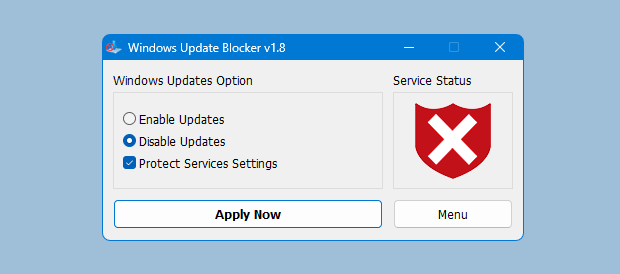
如何阻止其他服务并保护设置
Windows Update Blocker New version allow users to add any other service into Wub.ini file to block it , first please edit Wub.ini file and add your desired service name under the "dosvc=2,4" line , for example if you want to block "Windows Update medic Service" Please 打开服务并找到它
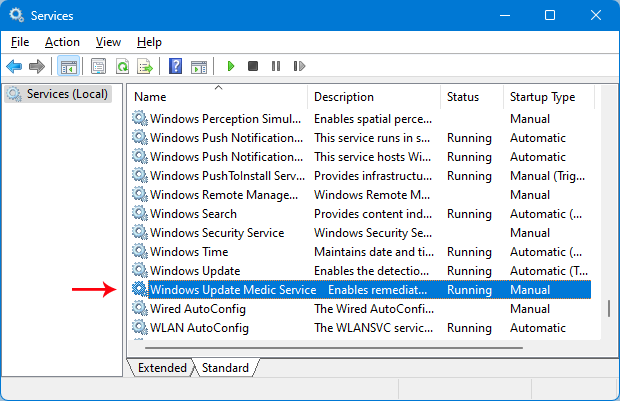
打开服务并找到它
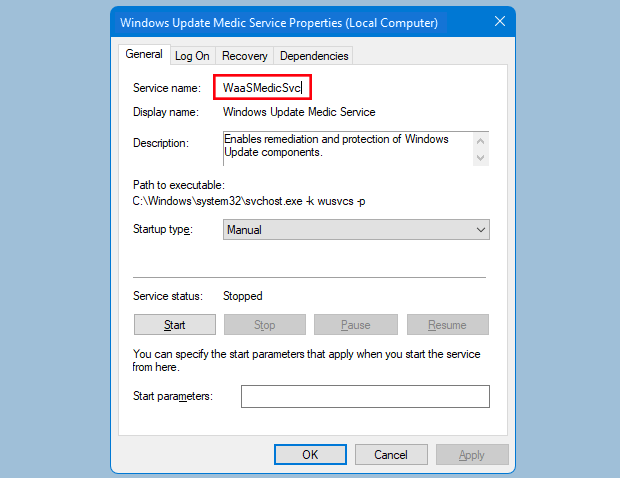
点击它并复制服务名称
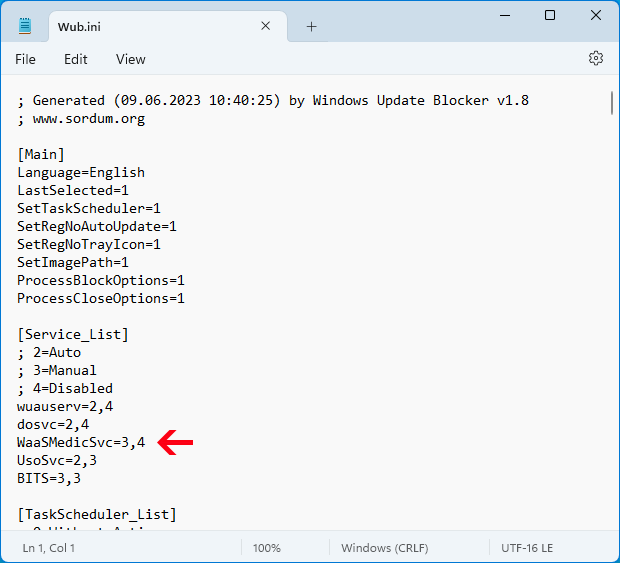
在 dosvc=2,4 行下写入或粘贴服务名称
Finally open Windows Update Blocker and use "Apply now" button.
如果稍后要删除新增服务,请按以下步骤操作:
- 打开 Windows Update Blocker,选择启用服务选项并点击 Apply now。
- 从 Wub.ini 文件中删除对应服务行
- 现在可以选择禁用服务与保护服务设置选项
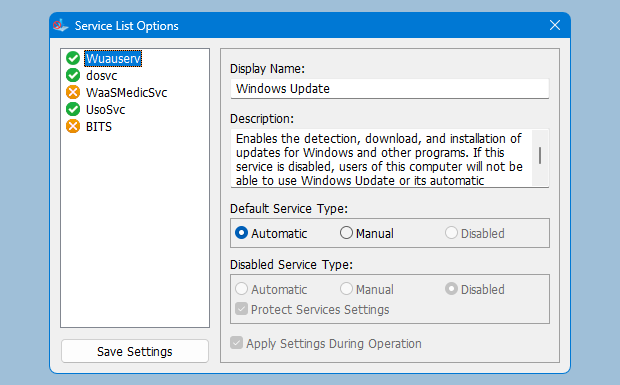
服务列表选项
Under Menu button there is a "服务列表选项" choice if you click it , 服务列表选项 popup window will be open.
通过该界面可轻松管理添加到 Wub.ini [Service_List] 部分的服务。
Wub.ini 最多可添加 25 个服务。Wuausrv 仅供信息显示,无法编辑。
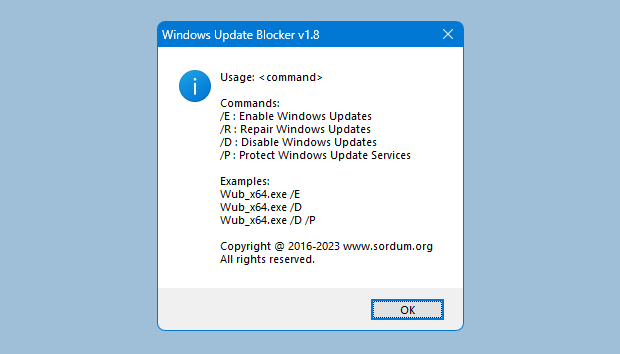
Windows Update Blocker 支持命令行参数以自动化相关任务:
文件:Wub.exe | Virustotal
MD5: 82aff8883099cf75462057c4e47e88ac
SHA1: 68e2939f59b3869e9bd3ecc4aca3947649631bf8
支持的操作系统
最低
- ✓Windows XP(32/64 位)及以上
- ✓可用磁盘空间 452 KB
- ✓便携使用,无需安装
推荐
- ✓Windows 10 或 Windows 11
- ✓需要管理员权限以控制服务
- ✓如有需要,启用更新后重启
故障排查指南
常见问题快速解决方案。
“Enable”按钮为灰色不可用。
请确保以管理员身份运行程序。右键点击 exe 并选择“以管理员身份运行”。
Windows Update 仍会自动启动。
检查是否安装了第三方更新管理器,它们可能覆盖这些设置。
常见问题
常见问题重要提示:
If the windows update service doesn't start or if there is a problem even though you have enabled windows updates, please restart your system and try again.
关闭 Windows 更新后,某些进程或程序可能尝试打开并修复更新,导致更新损坏。
若重启后更新仍无法打开,请使用微软的 Windows Update 疑难解答。
Wub 不会阻止 Microsoft Defender 更新。
What Our Users Say
加入数百万满意用户的行列...
“DNS Jumper 节省了我数小时,更新控制变得轻松。”
Alex King
系统管理员
“干净、轻量、可靠。我终于能控制更新时间了。”
Maria Brooks
IT 运维
“便携工具,状态清晰。正是我需要的。”
Jordan Lee
高级用户
5M+
下载s
4.9/5
用户评分
30+
语言
100%
免费